How to protect a Room?

Andrea
Last Update há 5 meses
The Protect feature allows you to gate your rooms behind a password or a lead capture form. This is useful for securing private content or gathering potential client information.
Select Virtual Tours -> Rooms from the side menu and click the Edit button on the desired room.

Go to tab Protect.

You can choose between Individual settings (unique to one room) or Global settings (shared across multiple rooms):
- None: No protection is applied; the room is publicly accessible.
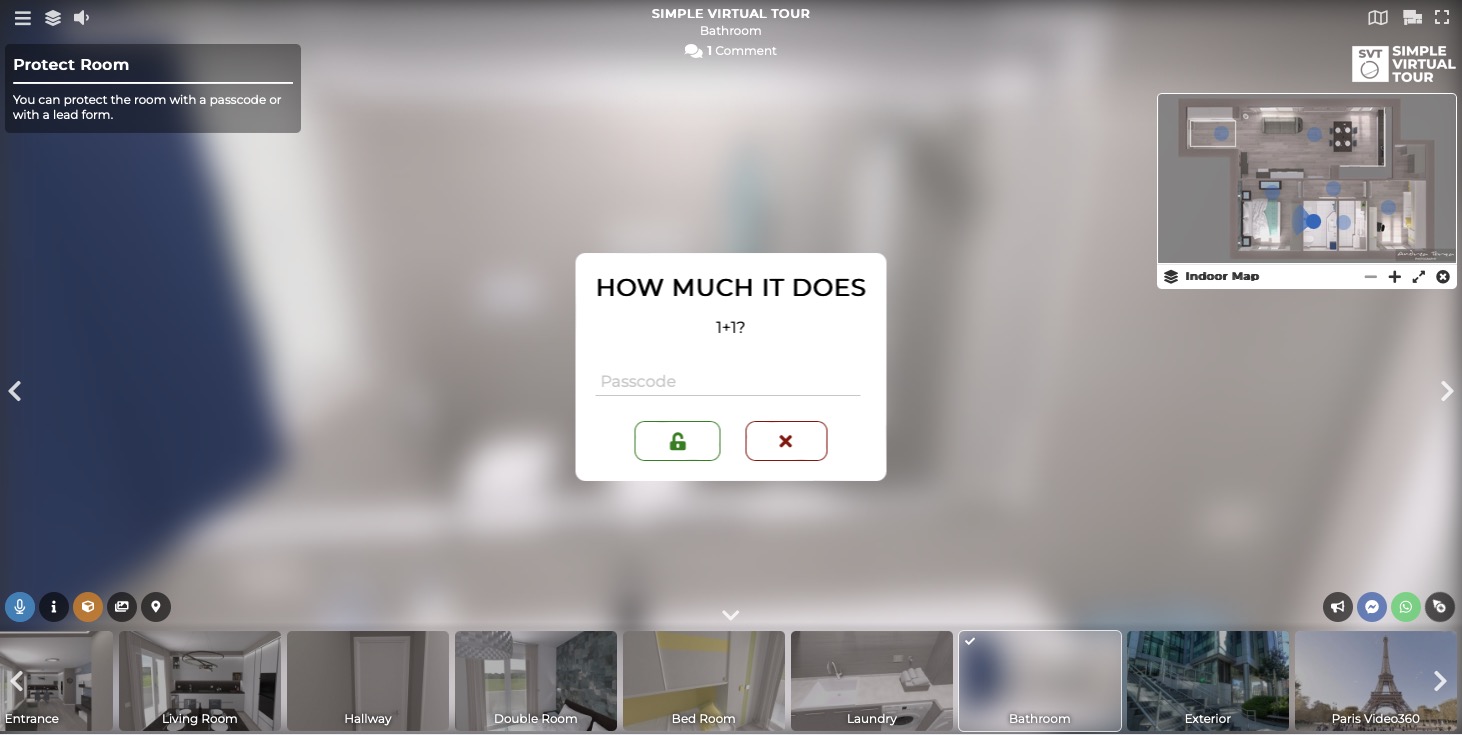
- Passcode / Passcode (Global): Users must enter a valid password to unlock the view.
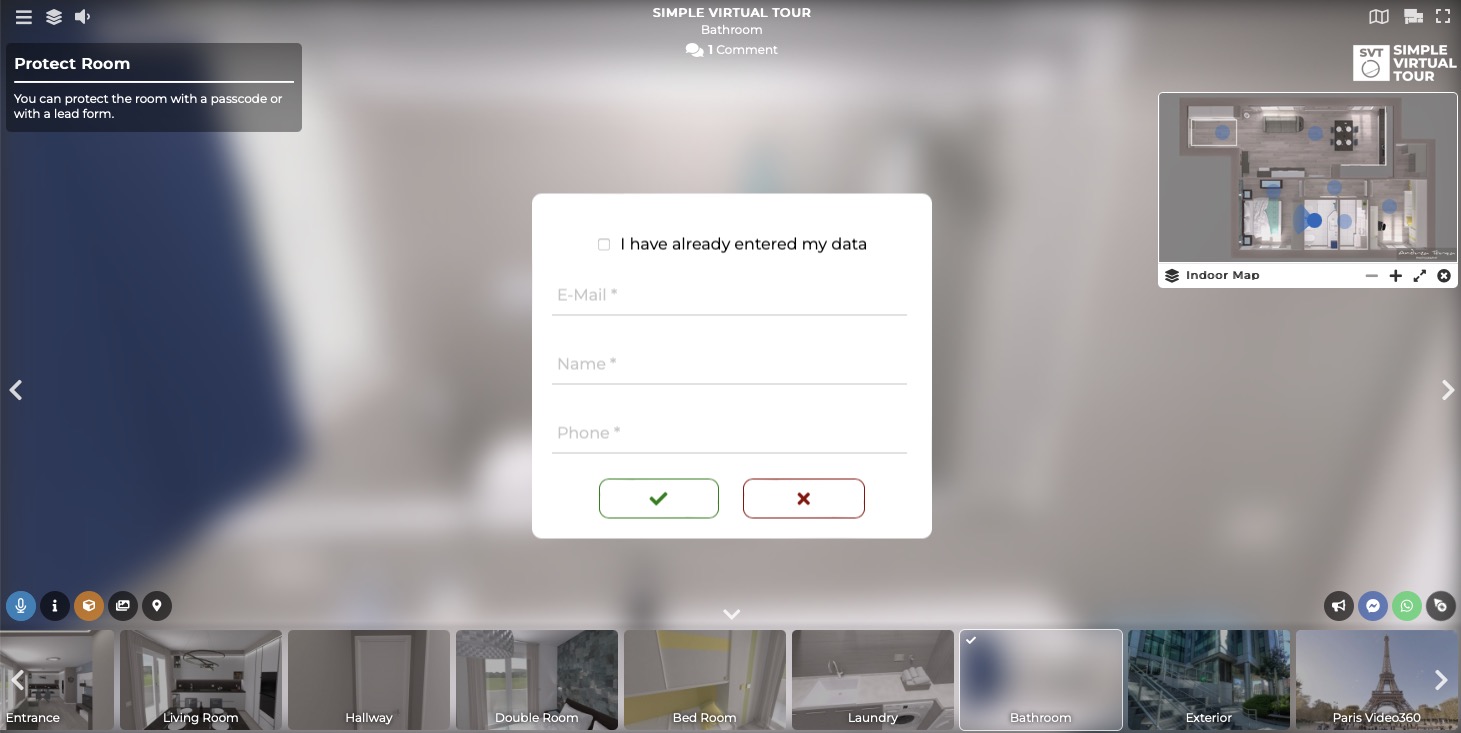
- Leads / Leads (Global): Users must provide their contact details (Name, Email, etc.) to gain access.
- Mailchimp Signup Form / (Global): Connect your Mailchimp account to have users subscribe to your mailing list before viewing.
Note on Global Protection: Settings for Global types are managed in the Edit Tour > Protect tab. When a user unlocks one room using a global setting, all other rooms sharing that same global setting will be unlocked automatically.
The result of a protected room is as follows: