
How to set Initial Position of a Room?

Andrea
Last Update hace 5 meses
You can configure the starting view (initial position) for when a user enters a room in three different ways:
DEFAULT
This sets the standard starting view whenever a user enters the room.

Go to tab Preview / View.
Drag the view and click Set on Initial Position field.

You can also set the same initial position on all rooms by clicking the "apply initial position to all rooms" button.
Click Save on top of the page.
MARKER
You can override the room's default starting view if the user enters via a specific marker.
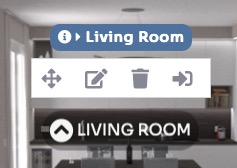
Click on Edit icon.

Check the Override Initial Position option, then click and drag the preview view to set the new starting angle for this specific entrance.
Click Save.
SAME AZIMUTH
This feature creates a highly realistic experience by automatically calculating the user's viewing angle based on their current orientation. It ensures the user maintains the same real-world direction (relative to "North") as they navigate between rooms.
To make it work correctly you have to set it up in the following way:
Go to Edit Tour > Settings > Transition, and enable it there.

Or open the marker menu and click the Same Azimuth toggle in the bottom right corner.

For Azimuth to work correctly, you must tell the system where "North" is in every single room.
You have two ways to set this:
- Method A (From the Rooms Menu): Navigate to Virtual Tours > Rooms and edit a room. Go to the Preview / Adjusttab, then click the North tab in the top right. Drag the view or move the slider until the camera points North, then click Set. (Tip: If you have a floorplan map enabled, watch the map's radar indicator to help align your view correctly).

- Method B (From the Markers Menu): While in the Markers section, click the Set North button in the bottom right corner, then drag the floating N icon left or right across the screen to define the North direction.
